Frequently Asked Questions
Pre-Enrollment FAQs
You may proceed at your own pace. Finish the course in one long day, or spread it out over several days or weeks.
- Each session contains a video which lasts about 1 hour.
- You must complete the session video before you can advance to the next session.
- Once all sessions have been completed you will have a test to complete.
Yes. You may go back and view previous lessons as often as you like, even after completing the course.
All lesson videos are pre-recorded and available to watch at anytime. You set your own pace.
Currently, there is not a printed version of the student notebook that can be ordered and shipped. You can view and print the PDF version of the notebook that is included with the course.
Billye Brim Bible Institute is an online course. You must be connected to the internet to access the course lessons and videos. The videos are not downloadable, but you may return to the online course as often as you wish to view the videos and lessons.
Sorry, no. Course tuition is payable in-full prior to accessing the online sessions.
Payment must be made by credit card, debit card, or prepaid debit card. Visa, MasterCard, American Express, and Discover are accepted.
You do not need to login prior to purchasing a course. Simply select the “Purchase This Course” button while viewing the course page and complete the checkout procedure.
- Previous Course Purchasers
During the checkout process you will be prompted to login if you have previously purchased a course. - First-Time Students
If you are a first-time student, the checkout process will include setting up an account and selecting a password.
After completing the checkout payment process you will be automatically logged in.
The following courses are available now.
| Eschatology: Rightly Dividing the Word | $200 | $250 | 3 |
| Beresheit: The World That Then Was | $200 | $250 | 3 |
| Beresheit: In the Beginning 02 | $200 | $250 | 3 |
| Virtual Israel Tour with Billye Brim | $200 | $250 | 3 |
| The Book of Daniel | $200 | $250 | 3 |
| The Book of Revelation | $200 | $250 | 3 |
| The Book of Ephesians | $200 | $250 | 3 |
| The Book of Ezekiel | $200 | $250 | 3 |
| The Book of Zechariah | $200 | $250 | 3 |
| Watching the Fig Tree | Part 1 | $200 | $250 | 3 |
| Women and the Word of God | $200 | $250 | 3 |
| Watching the Fig Tree Part 2 | $200 | $250 | 3 |
| A Place Called Heaven | $200 | $250 | 3 |
| Watching the Fig Tree Part 3 | $200 | $250 | 3 |
| The Bible: The Story of The Glory | $200 | $250 | 3 |
| The Epistle of 1st Corinthians | $200 | $250 | 3 |
| Exodus-Shemot | $200 | $250 | 3 |
| TOTAL COLLEGE CREDITS CURRENTLY AVAILABLE: | 51 | ||
More courses coming soon.
College Course FAQs
Yes. Billye Brim Bible Institute is accredited by Transworld Accrediting Commission, an accrediting commission for evangelical educational institutions.
The course and test is identical for the Standard Student and the College Credit Student enrollments. Those who choose the course for College Credit will be issued college credits for their successful completion of the course.
Our first 4 courses provide 2 college credits each. Most other courses provide 3 college credits, some even more. Check each course for details. It takes 60 credits for an Associate degree in Biblical Studies, which is the first degree we will be offering.
Graduation Requirements
- 60 Credit hours = Associate Degree
- No more than 6 (six) transfer credits in Bible-related subject, per Administration approval
- Upgrade from AA to BA in Biblical Studies
- AA from another institution-number of credits accepted by 3BI per Administration, plus 60 plus credit hours of 3BI-approved courses, to total 120 credit hours total.
- Upgrade from BA to MA in Biblical Studies: 30 additional credit hours. Subject to Administrative approval.
- Credit for Life Experience
Subject to Administrative review and approval. Can be up to 5 credits per year of full-time service in a ministry. Some limitations may apply. Must submit a written request and description of position and verification from pastor or supervisor. - MA to Doctorate: MA to Doctorate: 30 additional hours plus a 20,000 word dissertation, per Review Board guidance and approval.
Yes. Visit http://billyebrimbibleinstitute.com/product/college-credit-upgrade/ and pay the additional $50 and you will receive the College Credit upon completion of the course.
Currently we are offering an Associates Degree in Biblical Studies. The major emphasis of our school is Eschatology and Biblical Prophecy. This school is unique in its scope, and to receive full benefit of the teaching, the required courses need to be taken.
Most likely as we grow we will add a Bachelor’s program and a Master’s program.
Any acceptance of transfer credits will need to be approved by a review committee, and will be limited to a Bachelor’s or Master’s program.
As far as getting credits transferred, you will need to contact Barbara Wakefield, the 3BI Administrator, by email at 3bi@prayermtn.org.
Technical FAQs
Here are a few methods you can use to view the session video and the student notebook at the same time.
Use the Picture-in-Picture Option
- Open your online class window in your web browser.
- Click the "play" button on the lower left corner of the video player screen.
- On the same video player screen, on the lower right corner, the second icon from the right is a "picture-in-picture" option. Click on that.
- Scroll down to the "Embedded PDF for this Session Only."
- You can drag and reposition the video anywhere on your screen for best viewing.
Screenshot of Picture-in-Picture:

Side-by-Side Browser Tabs
- Open your online class window in your web browser.
- Scroll down to the "Embedded PDF for this Session Only." This is the Student Notebook that applies to this session.
- In the upper right corner, all the way to the right, there is an icon that looks like a ribbon. Right click on the ribbon.
- From the drop-down list that appears, click "Open in new window." A new window will open with the current session of the Student Notebook.
- Click the minimize icon at the top right to minimize the Notebook.
- Minimize the original window as well and drag them both until they are side-by-side on your screen.
- Scroll the video player to the correct position and click play.
Screenshot of Side-by-Side Browser Tabs:

NOTE:
You can also use this same method to view the complete student notebook, rather than just the embedded session-only PDF. Simply open the complete notebook in a separate window or tab and reposition as needed for side-by-side viewing.
View on Two Separate Devices
- If you have both a smartphone and either a laptop, desktop, or tablet, you can download the complete student notebook and view the PDF on the largest screen.
- Then login to your account on your mobile phone, navigate to the course you wish to view and watch the video on your phone while viewing the PDF on the larger device.
Screenshot using two devices:

Due to the limited screen size of a mobile phone, there is no practical way of watching the video and viewing the Student Notebook at the same time.
The best recommendation if you are using your phone to view the class is to print out the Student Notebook.
Print from Phone
If you're printing from your phone, you can print the current class session. To do this, open your online class window.
- Scroll down to the box that says, "Embedded PDF for this Session Only." This is the Student Notebook that applies to this session.
- Click on the printer icon in the upper right corner and follow the prompts as you normally would to print from your phone.
Print complete Notebook
To print the entire Student Notebook, you must download the PDF onto a computer and print from there. To do this, scroll to the box that says, "Download [Name of Current Class] Student Notebook."
- Click the orange box that says "Download PDF."
- Open the PDF, click on the printer icon in the upper right corner and follow the prompts as you normally would to print.
- Please go online to http://billyebrimbibleinstitute.com/
- Click the LOGIN link in the upper right corner.
- Enter your username or email address.
- Enter your password. ( If you don’t remember your password, use the “Lost your password?” link to set a new password. )
- Upon logging in you will land on your My Courses page.
- Click the large RESUME COURSE button and you will be taken to the next session of your course.
- On your computer, open Chrome.
- At the top right, click More. Settings. (3 small vertical dots)
- At the bottom of the Settings page, click Accessibility.
- Turn on Live Caption.

The trouble is most likely your internet speed, or lack thereof. Typically, you need a minimum download speed of 3 Megabits per second to watch a single video stream in clear, standard definition.
To check your internet speed you can visit https://www.speedtest.net/ and check the results.
If your download stream is less than 3 MBPS it may be time to consider an upgrade in your internet speed from your service provider, or you may also try visiting a local coffee shop to take advantage of their wifi service. (Just an option.)
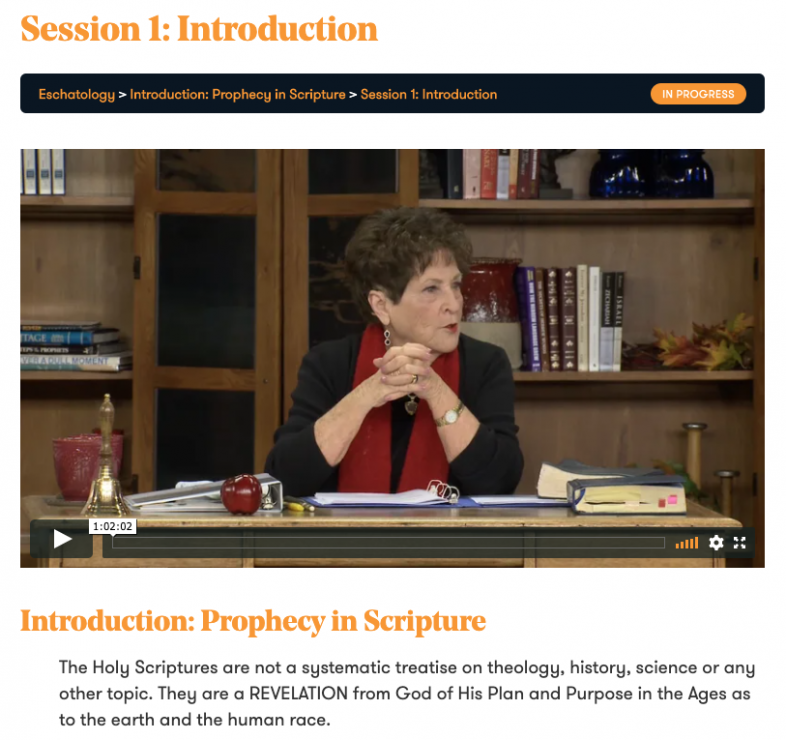
On each session's page you should see the video right below the title and course progress bar. (See screenshot below.)
Are you using a mobile phone while viewing the course? The online school is optimized for all devices including mobile phones, but there is the possibility that your cell phone service provider is restricting access because of data limits or other restrictions.
To test this, please try logging in and viewing the course content on a desktop or laptop that is NOT using a cellular connection.
After finishing a lesson you need to use the MARK COMPLETE button located at the bottom of each session to advance to the next session.
Sorry, we are not able to mail physical certificates. But don't worry, your certificate has no time limit and will be available anytime in the future should you wish to print it.
Once you have completed the course quiz, you can view the completion certificate PDF in a browser window.
To print from a browser, go to File-->Print in your menu bar to print the page (PDF) you are viewing. You can also go to File-->Save Page as... and save the page as a PDF to your computer.
Quiz FAQs
We understand that taking a test when you have no need of course credits sounds restrictive, but Dr. Billye has determined that is the best way to ensure students have a good grasp on the material before advancing to the next course.
So yes, you are required to take the course test before you are allowed to begin the next course.
The good news? The tests are really quite simple, and are basically an open book test with no time limit. And if you’re not happy with the score on the first test you can review the questions you missed and take the test a second time.
PLEASE NOTE:
Upon finishing a quiz, it is important to take the following step BEFORE you proceed further if you wish to review your quiz results.
Once you have left the exam results page it is currently not possible to retrieve past exams for analysis.
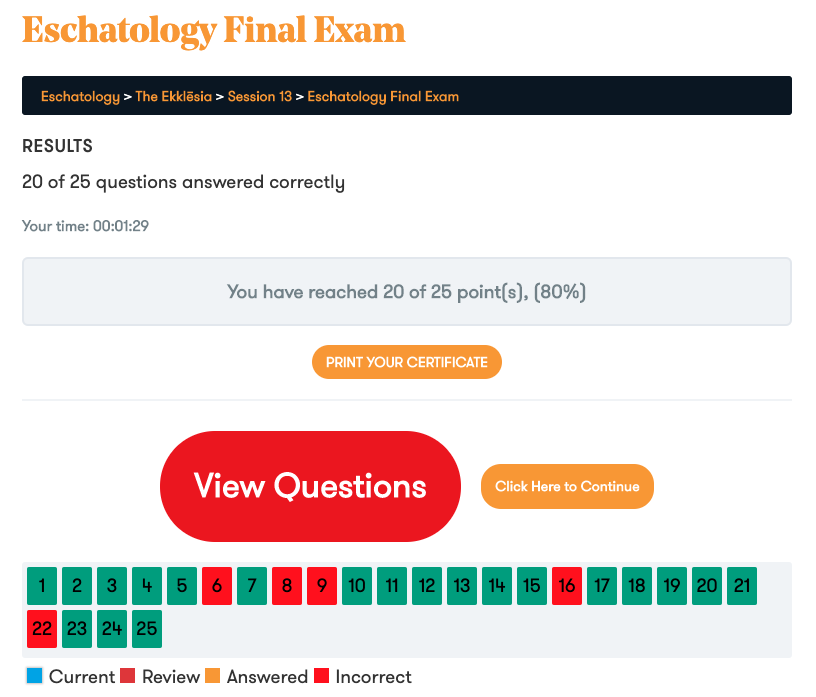
- You may review the questions on a quiz immediately upon finishing the quiz.
- Simply select the LARGE RED button that reads, "View Questions" to see a rundown of correct and incorrect answers. (See Final Exam screenshot below for an example of what to look for.)
Still Have Questions?
Select the HELP button in the lower right corner for fastest response.
You may also use our support contact form to let us know.